
Summary and Setup
This workshop provides a beginner-friendly overview of machine learning (ML) and common ML methods— including regression, classification, clustering, dimensionality reduction, ensemble methods, and a quick neural-network demo—using Python + scikit-learn. The broad coverage is designed to jump-start your ML journey and point you toward next learning steps.
Prerequisites
A basic understanding of Python. You will need to know how to write a for loop, if statement, use functions, libraries and perform basic arithmetic. Either of the Software Carpentry Python courses cover sufficient background.
Requirements
Software
You will need a terminal, Python 3.8+, and the ability to create Python virtual environments.
Installing Python
Python is a popular language for scientific computing and a frequent choice for machine learning as well. To install Python, follow the Beginner’s Guide or head straight to the download page.
Please set up your python environment at least a day in advance of the workshop. If you encounter problems with the installation procedure, ask your workshop organizers via e-mail for assistance so you are ready to go as soon as the workshop begins.
Setup
Create a new directory for the workshop, then launch a terminal in it:
Creating a new Virtual Environment
We’ll install the prerequisites in a virtual environment, to prevent them from cluttering up your Python environment and causing conflicts. First, create a new directory and ent
To create a new virtual environment (“venv”) called “intro_ml” for the project, open the terminal (Max/Linux), Git Bash (Windows) or Anacomda Prompt (Windows), and type one of the below OS-specific options:
If you’re on Linux and this doesn’t work, you may need to install
venv first. Try running sudo apt-get install python3-venv
first, then python3 -m venv intro_ml
Activate environment
To activate the environment, run the following OS-specific commands in Terminal (Mac/Linux) or Git Bash (Windows) or Anaconda Prompt (Windows):
Installing your prerequisites
Install the prerequisites:
Windows Subsystem for Linux
If you’re using WSL, you will also need to pip install
the PyQT5 package in your virtual environment.
Using Juypter Notebooks
Juptyter notebooks are a popular and convenient way of doing
exploratory data science. If you’d like to use a notebook for the
course, also pip install the jupyter package
in your virtual environment.
Then, you can run Jupyter lab using:
You should see an output like:
OUTPUT
To access the server, open this file in a browser:
    file:///home/smangham/.local/share/jupyter/runtime/jpserver-17093-open.html
Or copy and paste one of these URLs:
    http://localhost:8888/lab?token=53f26924ce34afe93f042e7748fcf46975ebbfb21d4dfbbc
    http://127.0.0.1:8888/lab?token=53f26924ce34afe93f042e7748fcf46975ebbfb21d4dfbbc
Follow the instructions, and you should see a launching page that
looks something like this: 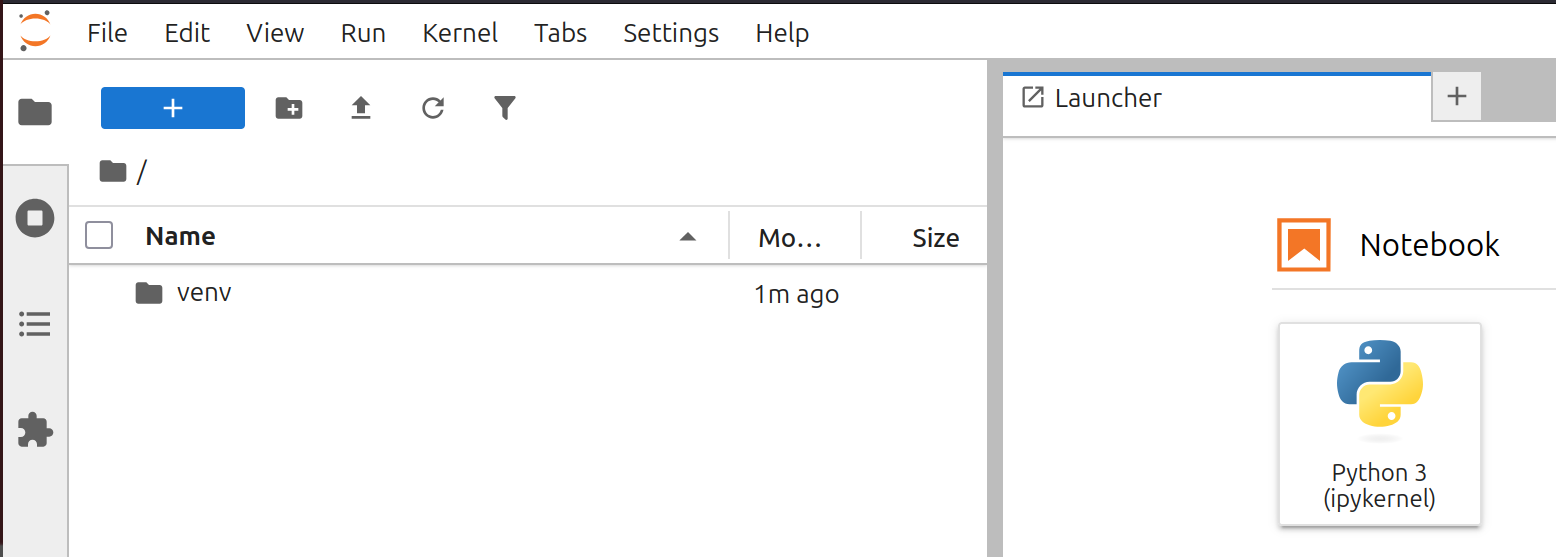 The “Notebook” option will allow you to
create a Jupyter Notebook.
The “Notebook” option will allow you to
create a Jupyter Notebook.
Deactivating/activating environment
To deactivate your virtual environment, simply run
deactivate in your terminal or prompt. If you close the
terminal, Git Bash, or Conda Prompt without deactivating, the
environment will automatically close as the session ends. Later, you can
reactivate the environment using the “Activate environment” instructions
above to continue working. If you want to keep coding in the same
terminal but no longer need this environment, it’s best to explicitly
deactivate it. This ensures that the software installed for this
workshop doesn’t interfere with your default Python setup or other
projects.
Fallback option: cloud environment
If a local installation does not work for you, it is also possible to run this lesson in Google colab. If you open a jupyter notebook there, the required packages are already pre-installed.